




Ce guide vous explique comment ajouter un nouveau produit à votre boutique Furzo ou modifier un produit existant en utilisant la page d’édition détaillée.
Essential Prerequisites
- Active Seller Account: You must be logged in to your verified seller account on Furzo.
- Active Subscription: Un abonnement (même l’offre Gratuite) est nécessaire pour pouvoir lister des produits dans votre boutique. Assurez-vous que votre plan est actif.
- Information Ready: Before you begin, make sure you have your product images, name, description, price, and an idea of the relevant categories and options on hand.
Go to the Product Creation/Editing Page
Il y a deux façons d’arriver sur cette page :
A) To Add a New Product:
- Log in to your Seller Dashboard: Sign in and go to your dashboard.
- Find the Products section: Naviguez vers la section de gestion de vos produits. Vous pouvez utiliser ce lien direct :
https://furzo-marketplace.com/dashboard/products/ou trouver l’option “Produits” dans le menu de votre tableau de bord. - Start the creation process: Click the button “Ajouter un nouveau produit” (or similar wording).
- Page d’Édition : Vous êtes maintenant redirigé vers la page d’édition complète. Elle est initialement vide (ou pré-remplie avec des valeurs par défaut). Procédez au remplissage des champs comme décrit ci-dessous.
B) To Edit an Existing Product:
- View the Product List: Assurez-vous d’être dans votre section Produits (
https://furzo-marketplace.com/dashboard/products/). - Select the product: Find the product you want to edit in the list.
- Ouvrez l’Éditeur : Cliquez sur le nom du produit ou survolez-le et cliquez sur l’option “Edit”.
- Page d’Édition : La page d’édition complète s’affiche avec les informations actuelles du produit.
Remplir les Détails du Produit sur la Page d’Édition
Whether you're creating a new product or updating an existing one, you'll use the following fields. Fill them out carefully to ensure a clear and effective product listing.
- General Information (Usually at the top of the page):
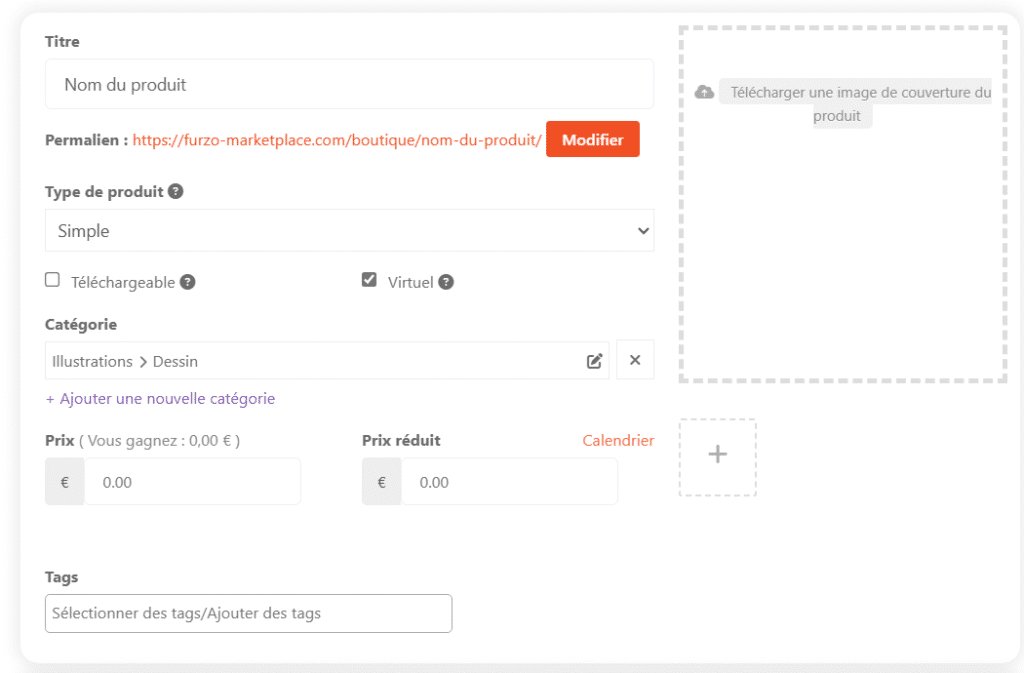
- Product name: Enter or edit the title. Be clear and descriptive.
- Permalink (URL): Vérifiez ou ajustez l’URL du produit (souvent générée automatiquement à partir du nom).
- Product type: Choose:
- Simple: Standard.
- Grouped: Bundle.
- External/Affiliation: Pour rediriger vers une URL externe (votre site, Etsy…). Remplissez l’URL et le texte du bouton. Ideal for listing items without selling them directly through Furzo.
- Variable: Pour les options (taille, couleur…). Nécessite Attributs et Variations.
- Virtual / Downloadable (Checkboxes):
- Virtual: For non-physical services or products that do not require shipping (e.g., commissions).
- Available for download: Pour les produits numériques livrés par fichier (ex: PDF, PSD). Permet d’uploader le fichier.
- Catégories & Tags : Assign or edit categories, and add or edit keywords (tags) relevant to the search. You can select multiple categories.
- Regular price (€) / Sale price (€): Set the prices. Plan promotions as needed.
- Cover image: Téléchargez ou remplacez l’image principale. Tip: Use a high-quality image.
- Galerie d’images du produit : Crucial! Add additional images (different angles, close-ups, and scenes).
- Descriptions:
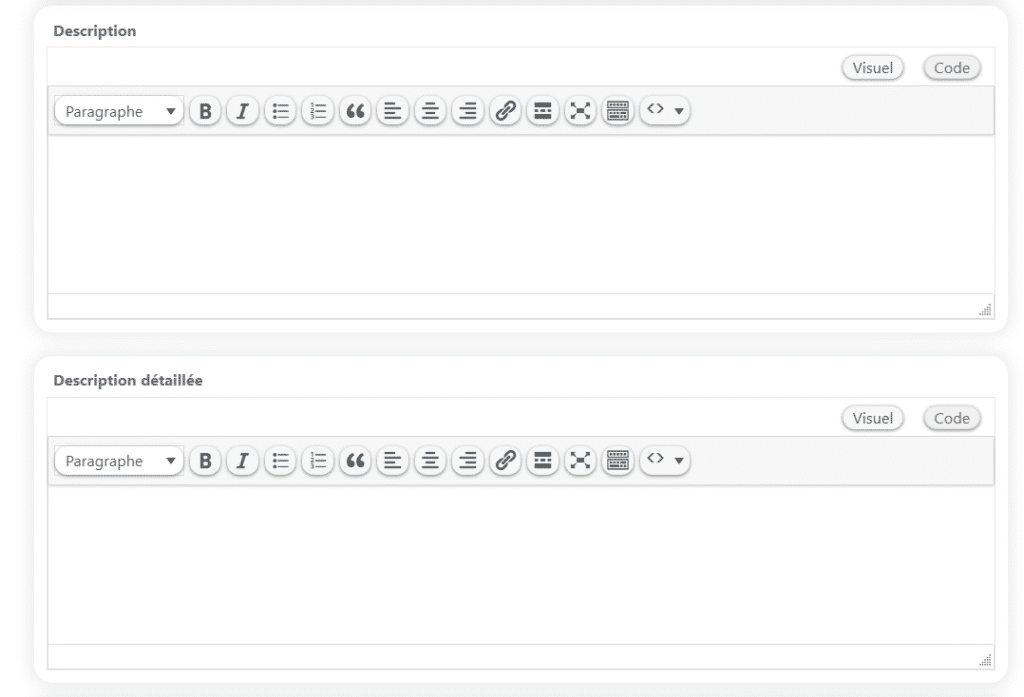
- Short Description: Write or edit the catchy summary (displayed at the top of the product page).
- Long Description: Fournissez tous les détails : matériaux, histoire, entretien, processus, etc. Utilisez l’éditeur de texte enrichi pour la mise en forme (gras, listes, liens…).
- Inventaire (Onglet/Section) :
- UGS (SKU): Unique identifier (optional but useful).
- Manage inventory? : Enable this to track inventory levels, set out-of-stock options, and define the low-stock threshold.
- Sold individually: Limit of 1 per order.

- Formulaire (Onglet/Section – si disponible) :
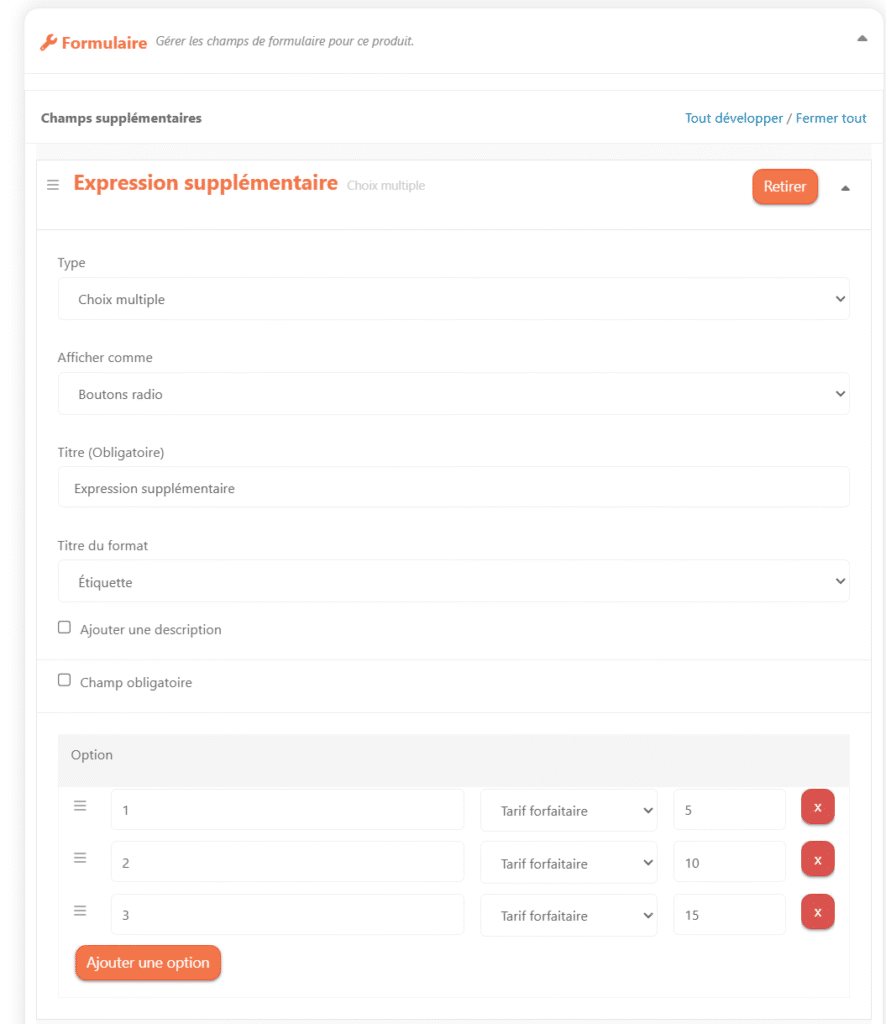
- Very useful for errands. Create custom fields for the customer to fill out (e.g., Fursona description, references).
- If you've added a form to your product, it won't be visible in your account; you'll need to log out or open an incognito window.
- Expédition (Onglet/Section – pour produits physiques) :
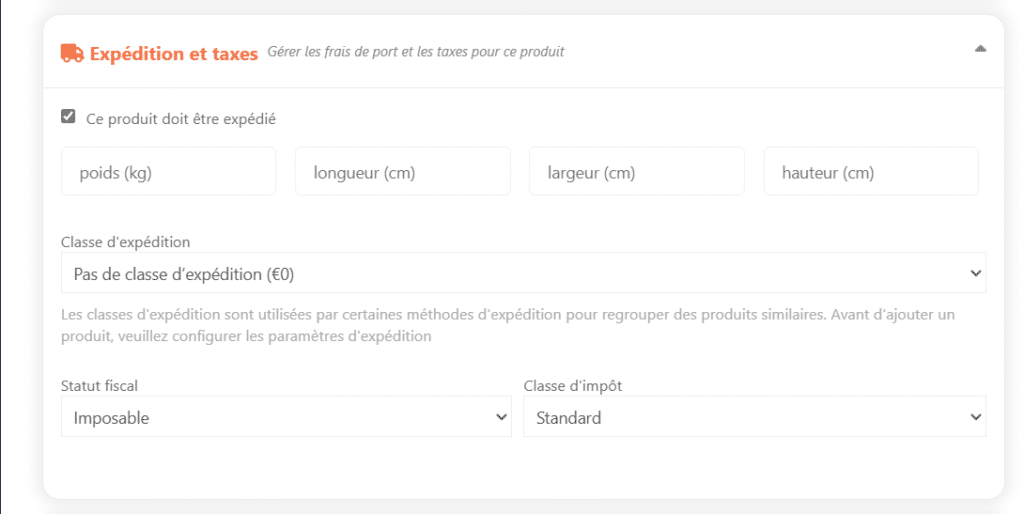
- Poids (kg) / Dimensions (cm) : Essential for calculating shipping costs.
- Shipping class: Select if configured.
- Processing time: Please specify the lead time before shipment.
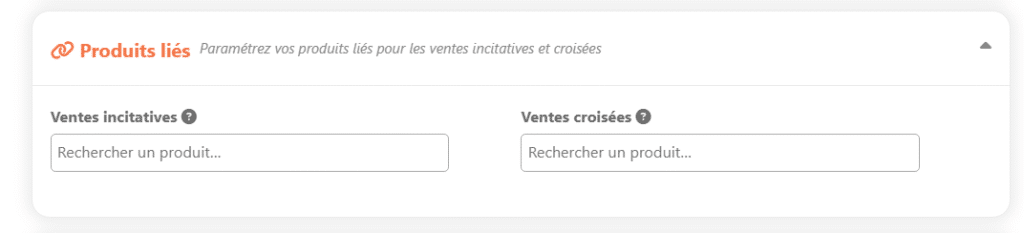
- Related Products (Tab/Section):
- Upsells: Suggest alternatives (which are often more expensive) on the product page.
- Cross-sells: Suggest related products in the shopping cart.
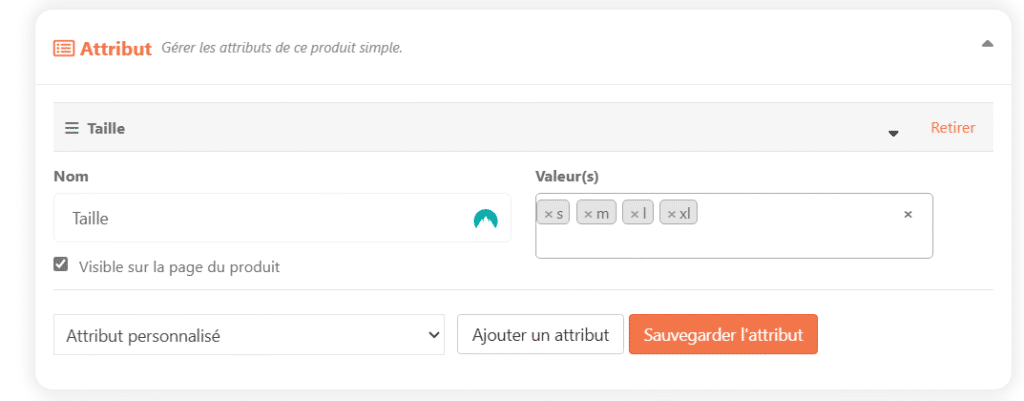
- Attributs (Onglet/Section) :
- Define the characteristics for the Variable Products (e.g., size, color).
- Variations (Onglet/Section – pour Produits Variables) :
- Créez et gérez chaque combinaison d’attributs (prix, stock, image spécifiques par variation).
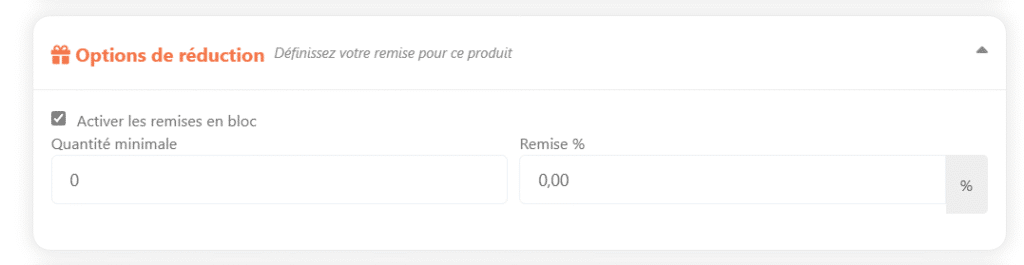
- Discounts (Tab/Section):
- Set up volume and percentage discounts
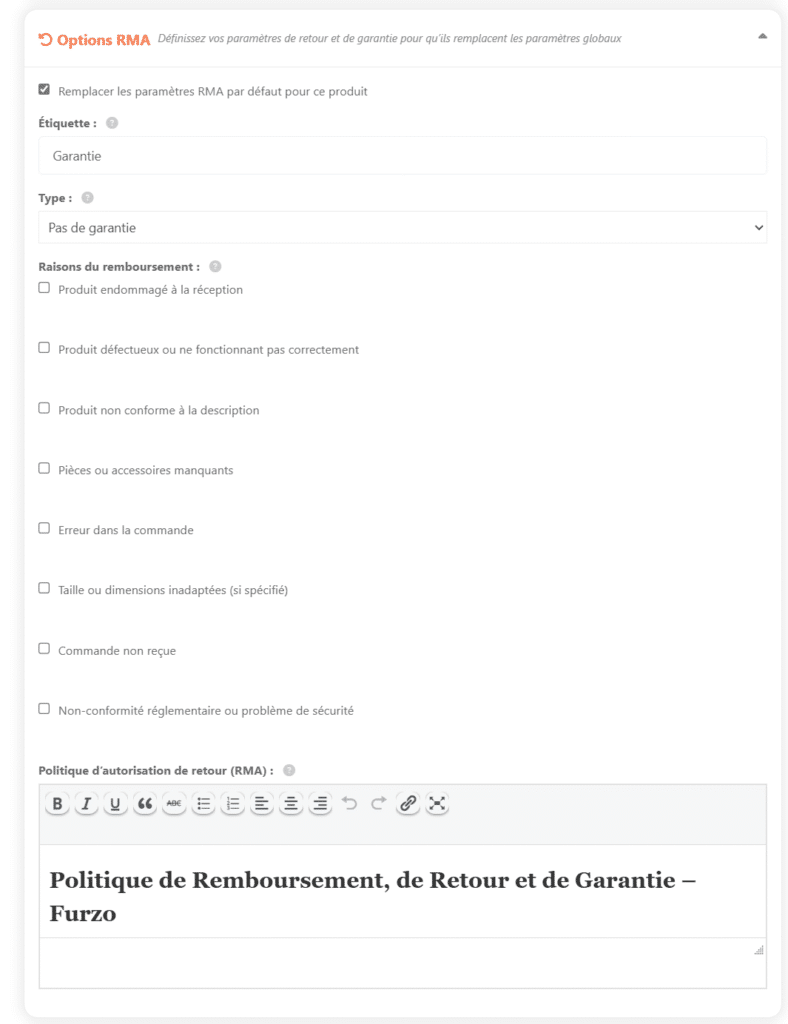
- Return Policy (RMA) (Tab/Section):
- Select this option to set a return policy specific to this product, which will override your store's general policy or that of Furzo for this item only.
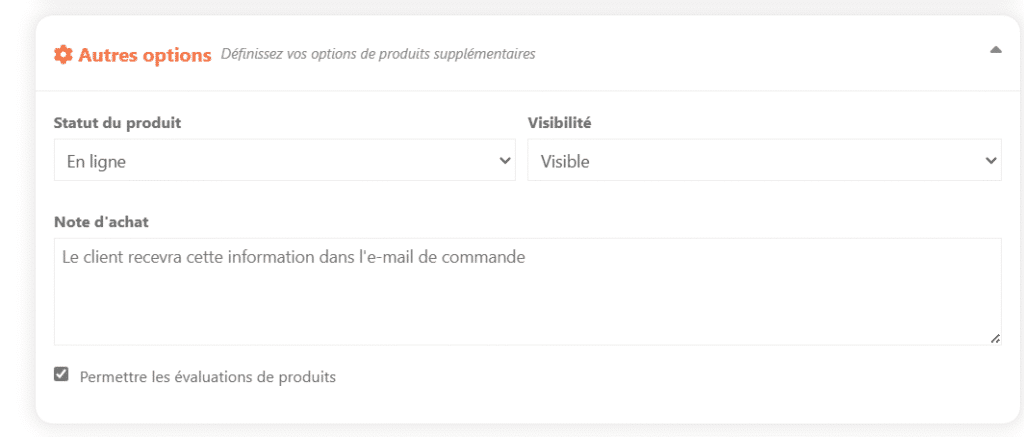
- Other Options (often in a sidebar or at the bottom):
- Visibility / Status: Published, Pending, Draft.
- Note d’achat : Message envoyé au client après l’achat de ce produit.
- Platform-Specific Options:
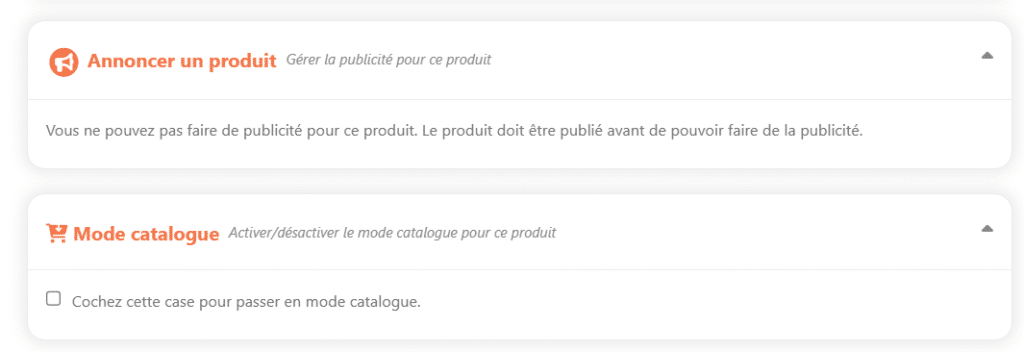
- Product Listing / Featured: Option to increase product visibility (may be paid or limited).
- Mode Catalogue (par produit) : Désactive l’achat pour ce produit (le bouton “Ajouter au panier” disparaît), mais le laisse visible.
- Final Save:
- VERY IMPORTANT: Une fois tous les détails renseignés ou modifiés, cliquez impérativement sur le bouton de sauvegarde. Il peut s’appeler :
- “Enregistrer le produit” ou “Publier” si c’est un nouveau produit.
- “Mettre à jour” if you modify an existing product.
- If you don't do this, all your information will be lost!
- Conseil : Après sauvegarde, vérifiez toujours l’apparence et les informations de votre produit sur la page publique de votre boutique. Si vous avez ajouté un formulaire à votre produit, il ne sera pas visible avec votre compte, il faudra vous déconnecter ou ouvrir une navigation privée.
- VERY IMPORTANT: Une fois tous les détails renseignés ou modifiés, cliquez impérativement sur le bouton de sauvegarde. Il peut s’appeler :