




This guide explains how to add a new product to your Furzo store or modify an existing one using the detailed editing page.
Essential prerequisites
- Active seller account : You must be logged in to your validated Furzo seller account.
- Active subscription : A subscription (even the Free offer) is required to list products in your store. Make sure your plan is active.
- Ready information : Have your product images, name, description, price and an idea of the relevant categories and options ready before you start.
Go to Product Creation / Edit Page
There are two ways to get to this page:
A) To add a new product :
- Access your Seller Area : Log in and go to your dashboard.
- Locate the Products section: Navigate to your product management section. You can use this direct link:
https://furzo-marketplace.com/dashboard/products/or find the «Products» option in your dashboard menu. - Start Creation : Click on the «Add a new product» (or similar wording).
- Edit page : You are now redirected to the full edit page. It is initially empty (or pre-filled with default values). Fill in the fields as described below.
B) To Modify an Existing Product :
- Access the Product List : Make sure you are in your Products section (
https://furzo-marketplace.com/dashboard/products/). - Select Product : Find the product you wish to modify in the list.
- Open the Editor: Click on the product name or hover over it and click on the option «Modify».
- Edit page : The full edit page is displayed, with current product information.
Fill in the Product Details on the Edit Page
Whether you're creating a new product or modifying an existing one, you'll use the following fields. Fill them in carefully for a clear and efficient product sheet.
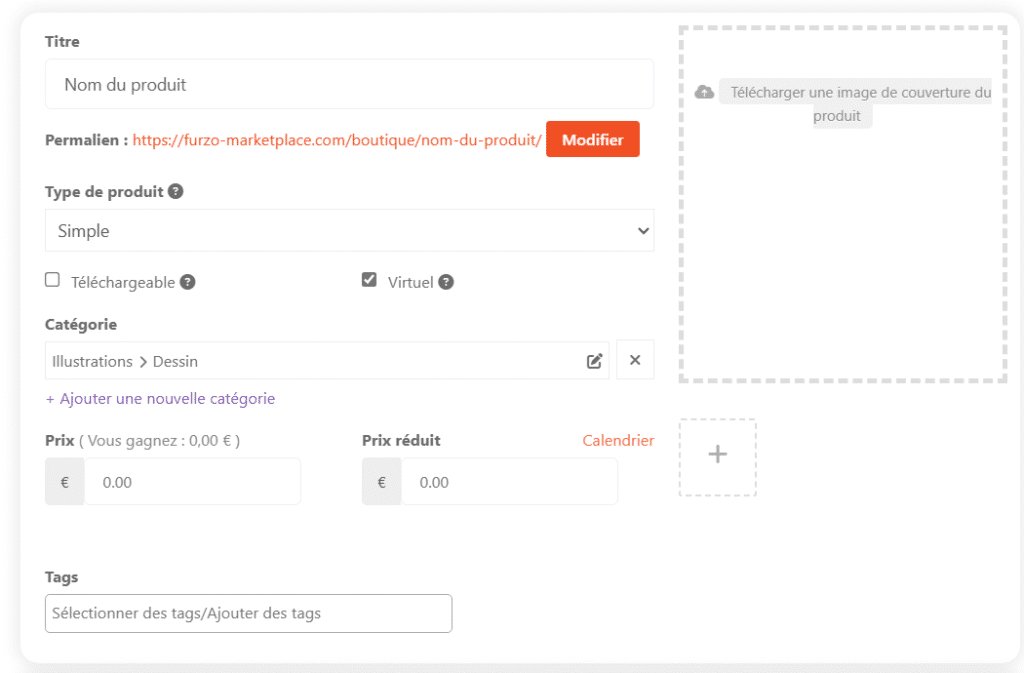
- General information (often at the top of the page) :
- Product name : Enter or modify the title. Be clear and descriptive.
- Permalink (URL) : Check or adjust the product URL (often automatically generated from the name).
- Product type : Select :
- Simple : Standard.
- Grouped : Bundle.
- External/Affiliation : To redirect to an external URL (your site, Etsy...). Fill in the URL and button text. Ideal for listing without selling directly via Furzo.
- Variable : For options (size, color...). Requires Attributes and Variations.
- Virtual / Downloadable (Checkboxes) :
- Virtual : For non-physical services or products without shipping (e.g. commission).
- Downloadable : For digital products delivered as files (e.g. PDF, PSD). Allows you to upload the file.
- Categories & Tags : Assign or modify categories and add/edit keywords (tags) relevant to the search. You can select multiple categories.
- Normal price (€) / Reduced price (€) : Define prices. Plan promotions if necessary.
- Cover image: Download or replace the main image. Tip: Use a high-quality image.
- Product image gallery : Crucial! Add additional images (different angles, details, settings).
- Descriptions:
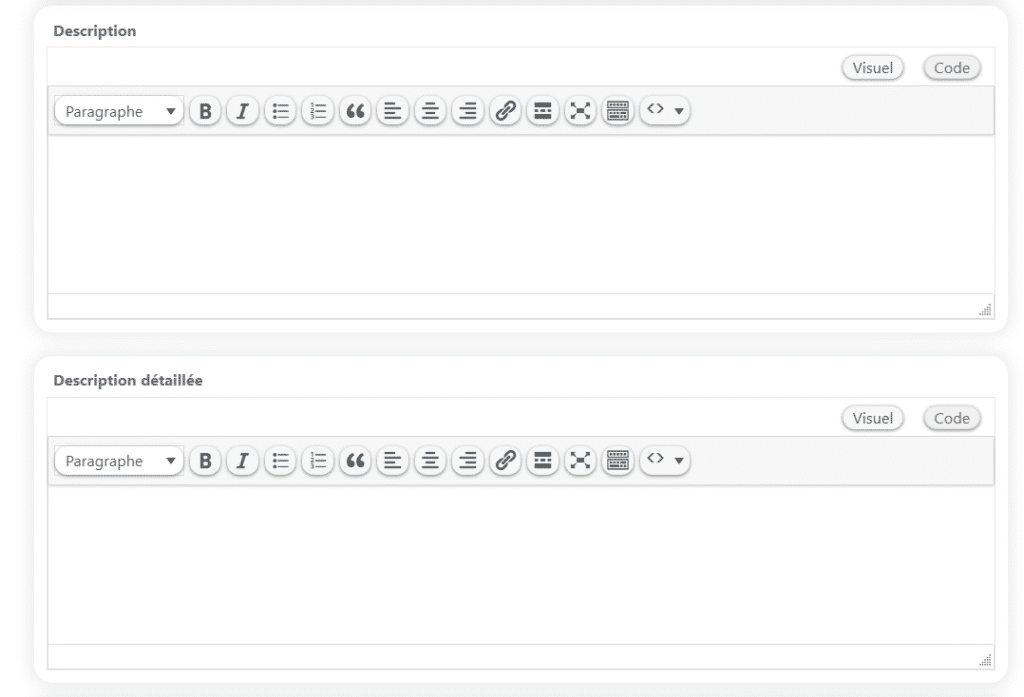
- Short Description : Write or modify the catchy summary (visible at the top of the product page).
- Long Description: Provide all the details: materials, history, maintenance, process, etc. Use the rich text editor for formatting (bold, lists, links, etc.).
- Inventory (Tab/Section) :
- SKU : Unique reference (optional but useful).
- Stock management ? : Activate to track quantity, define out-of-stock options and low threshold.
- Sold individually: Limit 1 per order.

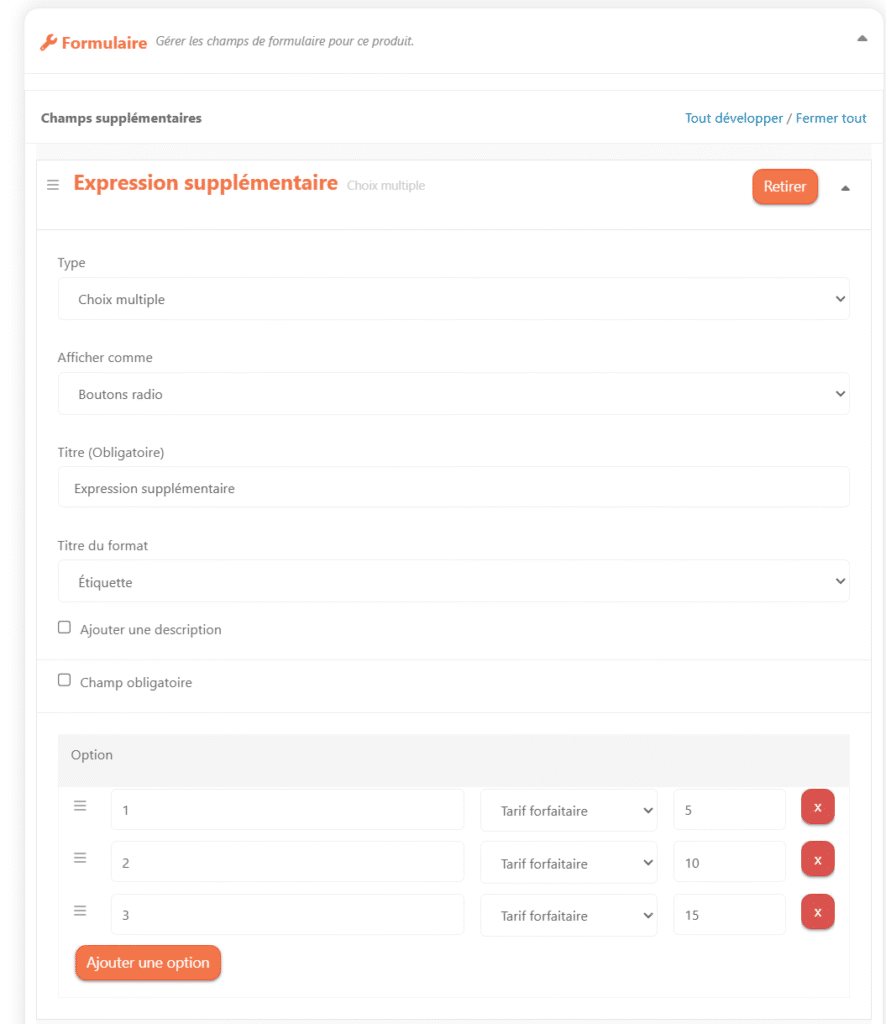
- Form (Tab/Section - if available) :
- Very useful for commissions. Create custom fields for customers to fill in (e.g. Fursona description, refs).
- If you have added a form to your product, it will not be visible with your account. You will need to log out or open a private browser.
- Shipping (Tab/Section - for physical products) :
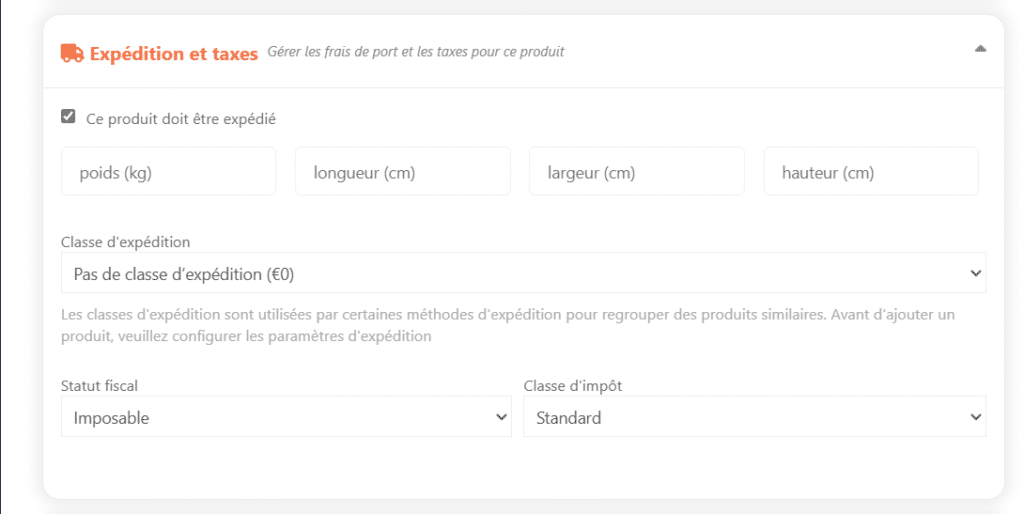
- Weight (kg) / Dimensions (cm) : Indispensable to calculate shipping costs.
- Shipping class : Select if configured.
- Processing time : Indicate time to shipment.
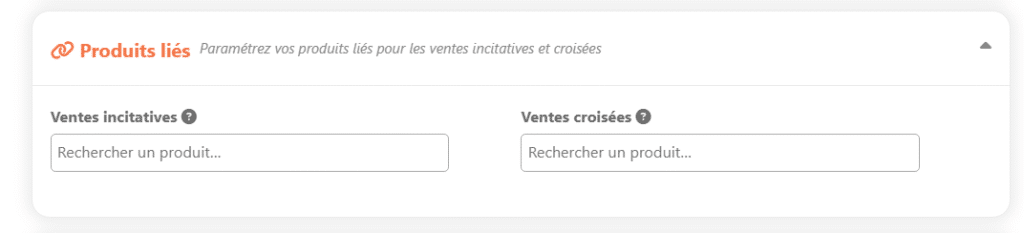
- Related products (Nail/Section) :
- Upsells : Suggest alternatives (often more expensive) on the product sheet.
- Cross-sells : Suggest complementary products in the basket.
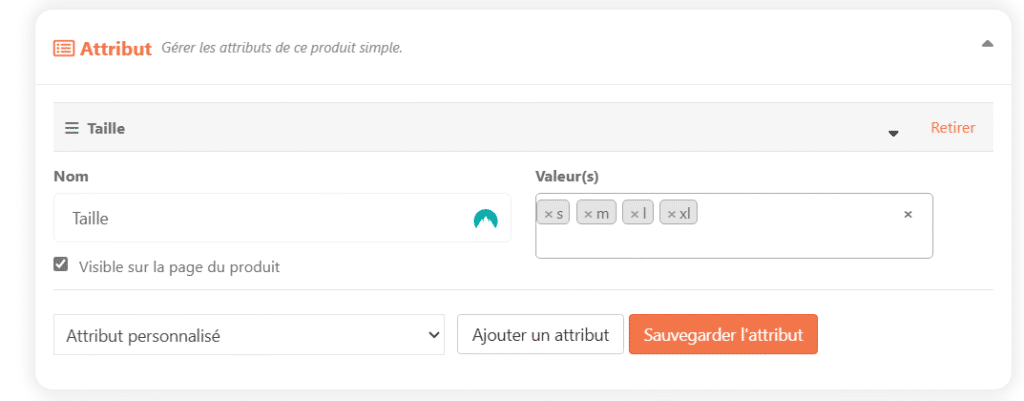
- Attributes (Tab/Section) :
- Define features for Variable Products (e.g. Size, Color).
- Variations (Tab/Section - for Variable Products) :
- Create and manage each combination of attributes (price, stock, specific images per variation).
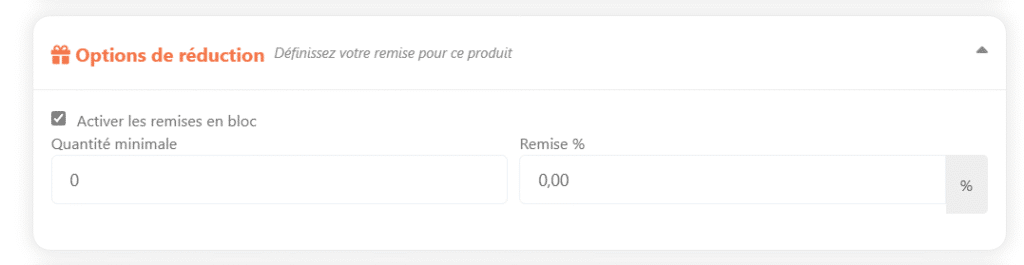
- Reductions (Nail/Section) :
- Configure quantity and percentage discounts
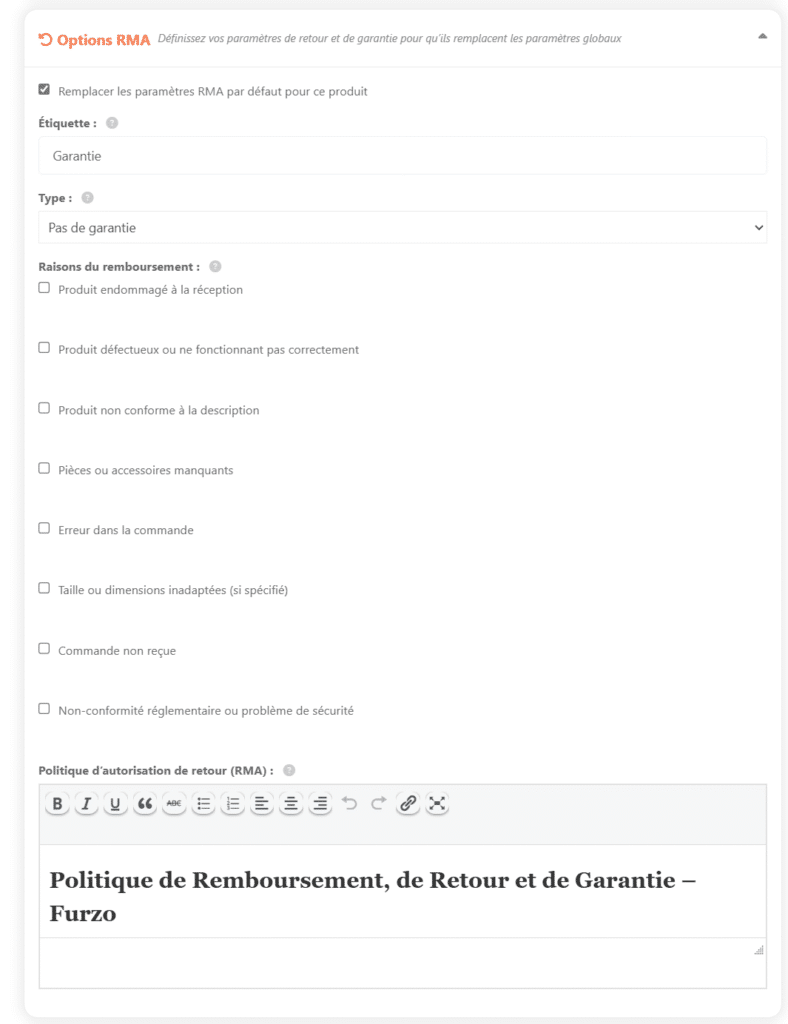
- Return Policy (RMA) (Tab/Section) :
- Activate to define a return policy specific for this product, which will supersede your store's general policy or Furzo's policy for this item only.
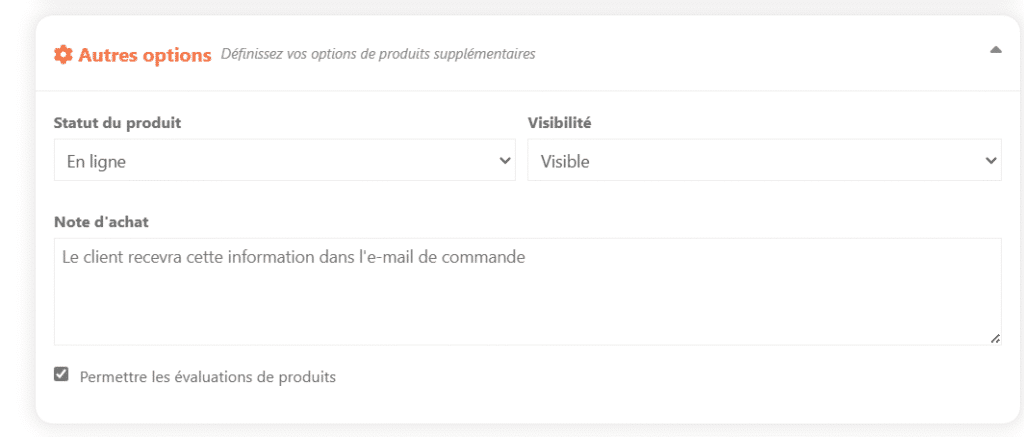
- Other Options (often in a side or bottom section) :
- Visibility / Status : Published, Pending, Draft.
- Purchase note : Message sent to the customer after the purchase of this product.
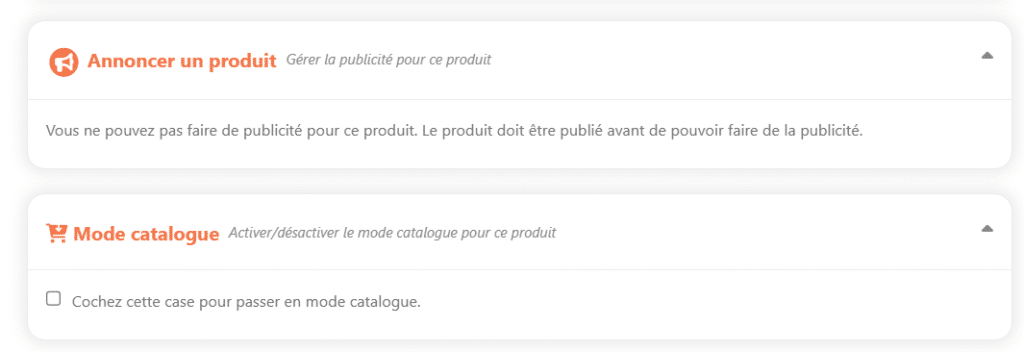
- Platform-specific options :
- Product Ad / Highlight : Option to increase product visibility (can be paid or limited).
- Catalog mode (per product) : Disables purchase for this product (the «Add to cart» button disappears), but leaves it visible.
- Final save :
- VERY IMPORTANT : Once all the details have been entered or modified, click on the save button. It can be called :
- «Register product» or «Publish» if it's a new product.
- «Update» if you're modifying an existing product.
- Without this action, all your information will be lost!
- Tip: After saving, always check your product's appearance and information on your store's public page. If you've added a form to your product, it won't be visible with your account, so you'll need to log out or open a private browser.
- VERY IMPORTANT : Once all the details have been entered or modified, click on the save button. It can be called :